
Introducing the New Raspberry Shake Control Center
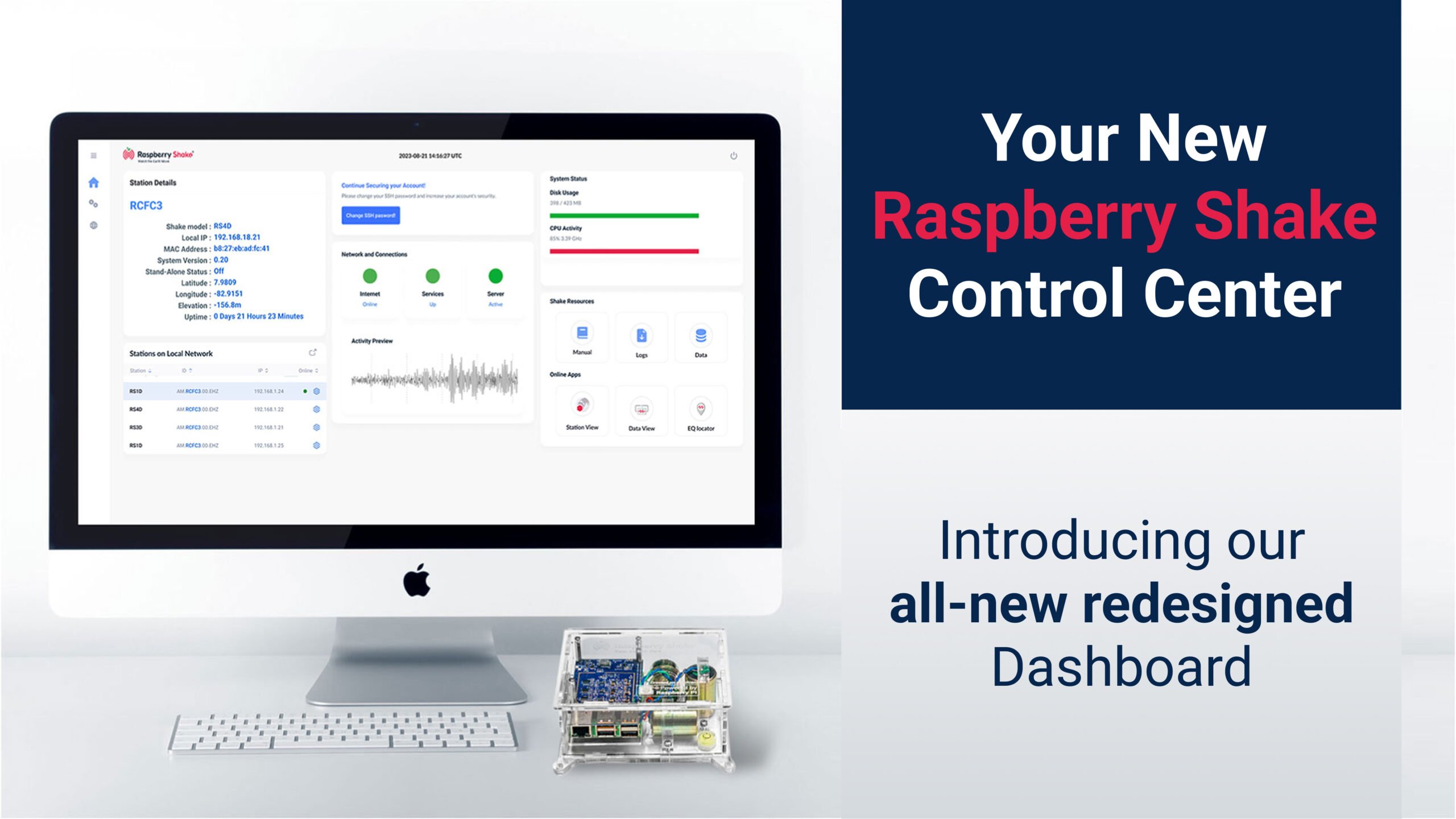
Setting up and managing your Raspberry Shake device is now easier and more intuitive than ever with the launch of the Raspberry Shake Control Center. This completely redesigned local dashboard is accessible directly from your browser at http://rs.local/, and it replaces the previous interface with a modern, streamlined experience.
Whether you’re a brand new user or have had a Shake running for years, this dashboard gives you everything you need to monitor and manage your device efficiently and with confidence. The Control Center is included in the latest Shake OS update, now available on all devices.
Note: This new dashboard is built into your Raspberry Shake device and does not replace or affect online services like StationView or DataView. It only updates the local interface you access on your own network.
Important: Raspberry Shake updates are automatic updates and do not require you to do anything. Within a week’s time from the release date (November 21st, 2025), your Raspberry Shake will automatically update. So, if you do not see the new rs.local/ interface yet, you will within a week’s time.
Let’s dive in!
getting started
To open the Raspberry Shake Control Center, make sure your device is connected to your local network, then open a web browser and navigate to http://rs.local/.
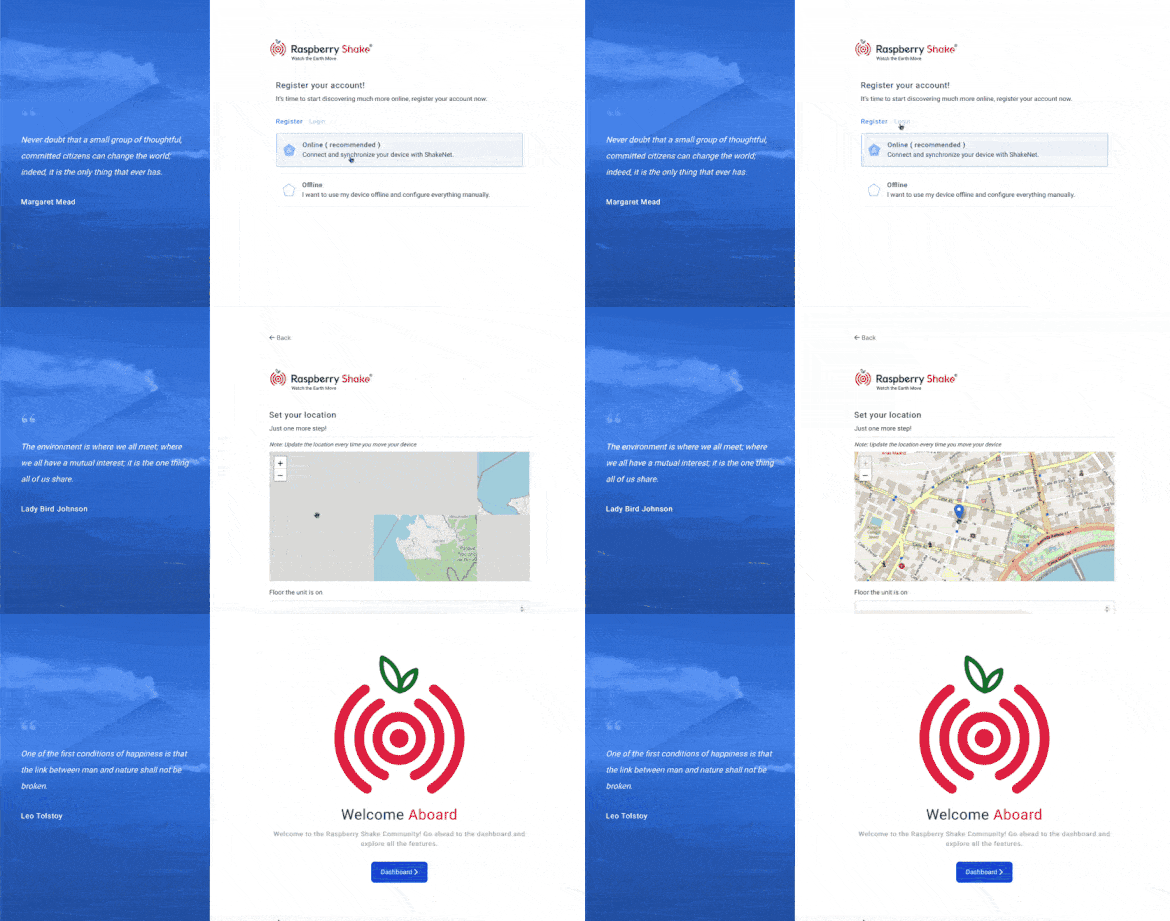
- New users will be guided through an easy setup process where you’ll register your Shake, create an account, and configure the basics.
- Existing users can simply access it as usual via http://rs.local/. There’s no need to re-register your device.
Simply follow the on-screen instructions, and in moments you will have access to your Shake and new Control Center dashboard.
Navigation
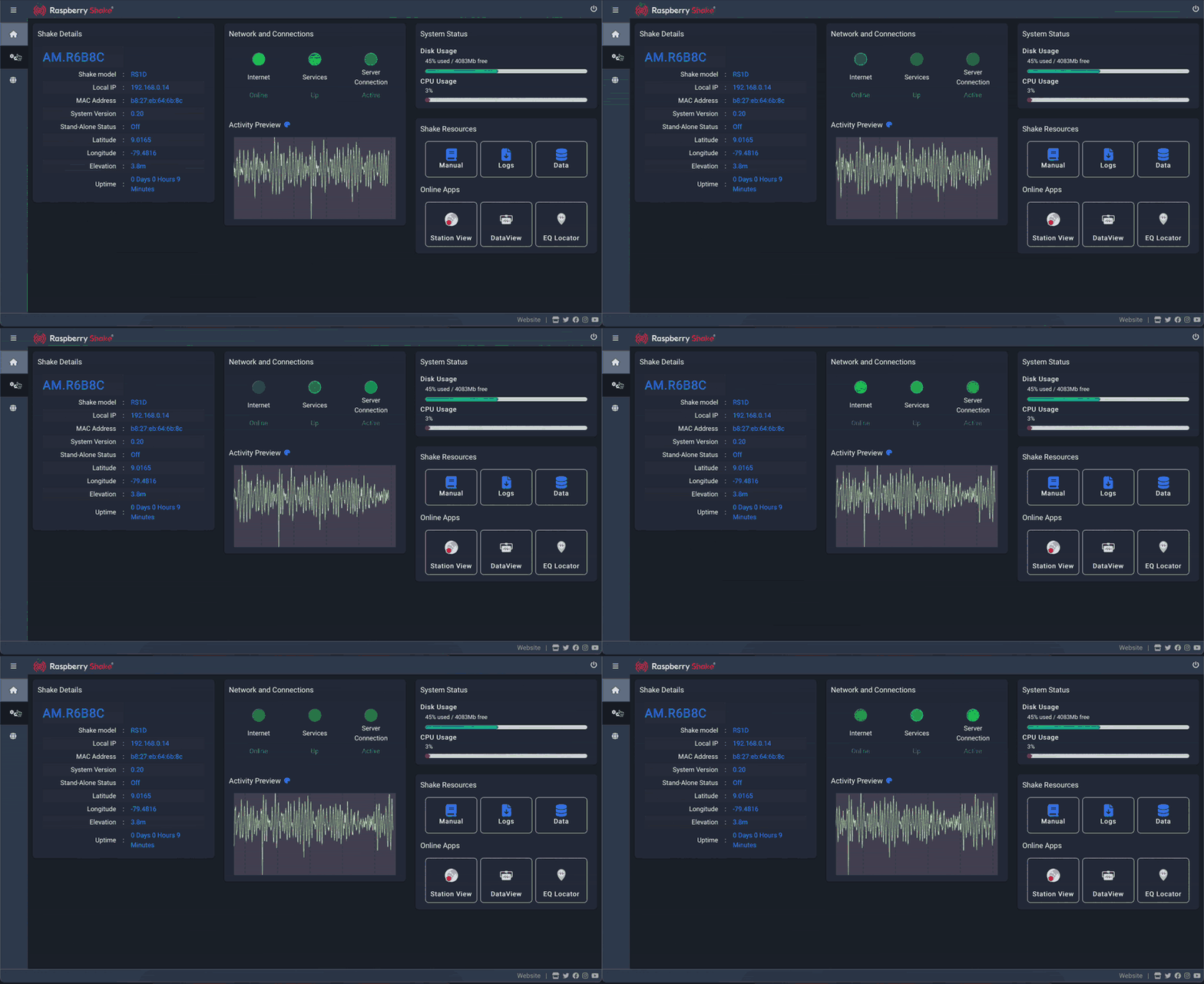
The Control Center is designed for clarity and ease of use, with intuitive and streamlined navigation via the left-hand menu. You’ll find three main sections: Home, Settings, and Online Apps.
At the top of the screen, you can quickly view the current date and time (UTC), and on the top right, conveniently find the power options for your Raspberry Shake.
For easy access to our website, shop, and social media platforms, you’ll find reference icons placed in the footer.
Dashboard Overview
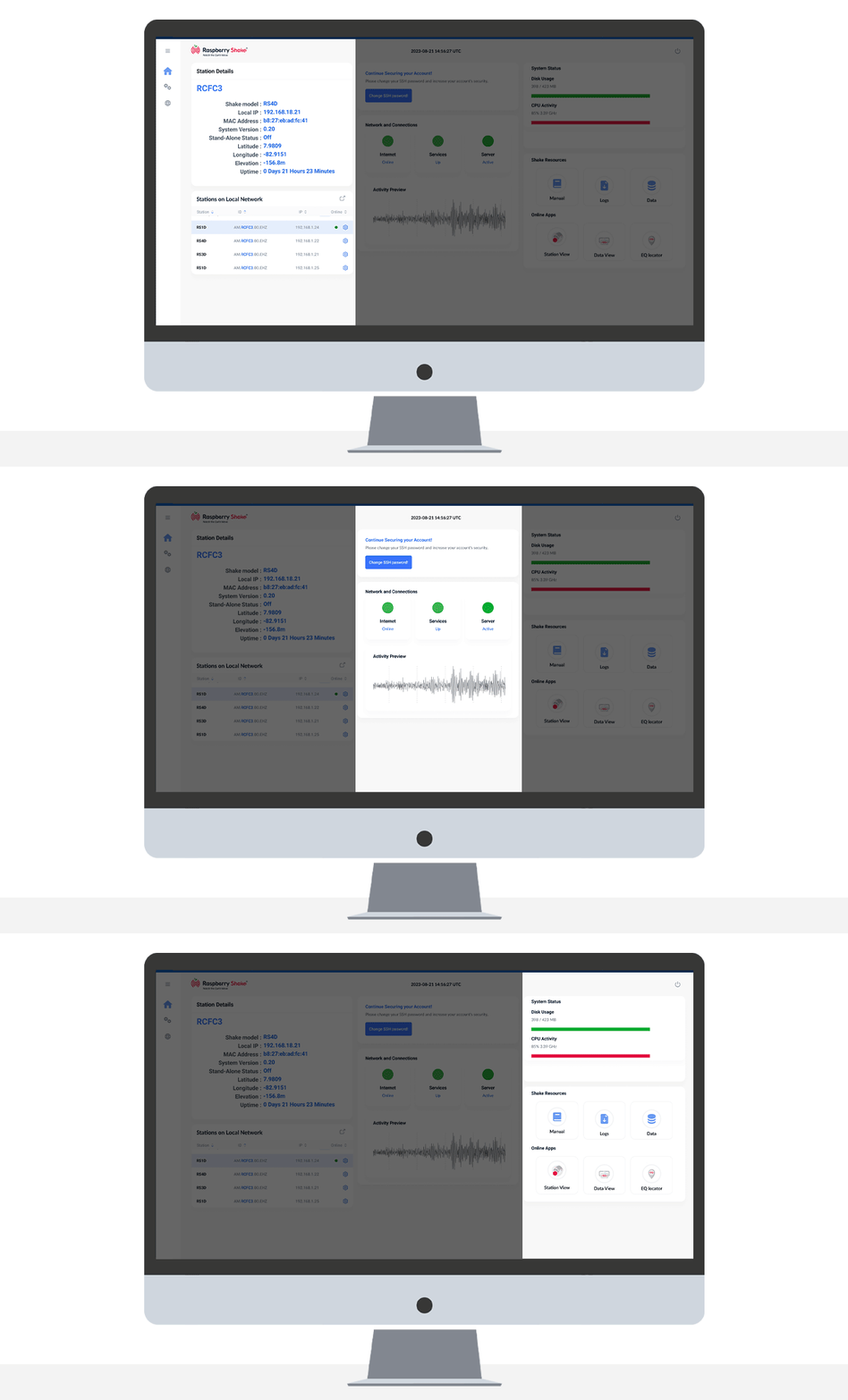
The main dashboard view is split into three sections:
- Left panel: Shake details and (if applicable) a list of other devices on the same network
- Center: Network status and a live preview of seismic activity
Right panel: System status and links to useful tools and downloads.
Shake Details and Device List
The top left column of your dashboard shows your selected Shake station, including its unique name, location details, settings, and status.
If you have multiple devices connected to the same network, you will be able to view them listed in the section below, along with some basic information, including model, unique ID, and IP address. (Please note this section is not displayed if you only have one device connected). Select any device from the list to open its dashboard in a new tab in your browser.
Network and Connections / Activity Preview
In the center section, you’ll quickly see whether your Shake is connected to the internet, whether its internal services are functioning correctly, and whether it is forwarding data to the worldwide ShakeNet. Color-coded icons give you an at-a-glance connection status.
The Activity Preview shows a 10-second real-time data stream directly from your Shake, confirming that it is recording properly. You can also personalize the looks of this waveform plot.
System Status / Quicklinks
The right panel shows key Raspberry Pi performance metrics like disk usage and CPU load. Below that, the Quick links section gives you fast access to:
- The Shake Manual
- Log file downloads
- Saved waveform data
- Our suite of web-based applications
Note: These online apps will appear grayed out if data forwarding is disabled. To maximize your Shake’s capabilities and actively contribute to advancing science through our seismic network, please ensure that data forwarding is enabled in your settings.
Settings Overview
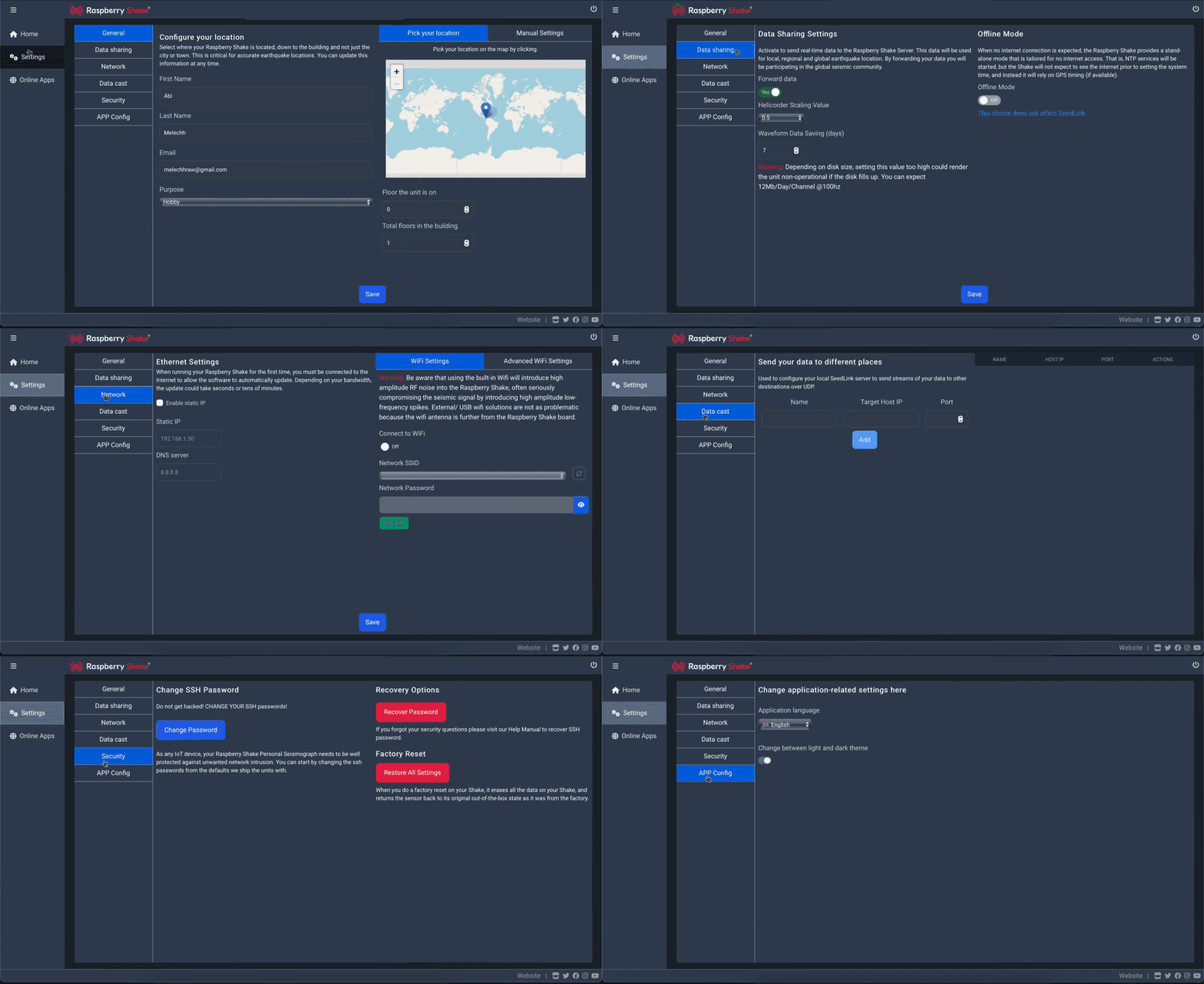
The Settings section gives you full control over your Shake’s configuration. Be sure to click Save (at the bottom) after making any changes.
General
View or update your Shake registration details, including name, email, and device location. New users enter these during setup, but they can be edited here at any time, particularly if the Shake changes location or owner.
Data Sharing
Toggle data forwarding ON or OFF. We strongly recommend keeping data forwarding enabled, as it unlocks enhanced features in our online web apps and actively contributes to the Raspberry Shake Citizen Science seismic network, the largest in the world!
Additionally, you have access to customize your helicorder scaling settings and waveform data saving preferences. An option to put your Shake into Offline mode is also available for field study installations.
Network
This section enables you to set up a static/preferred IP and DNS addresses for your Shake (for example, if you like to keep all your devices organized in your local network, or require a specific DNS to access the internet outside your network).
Furthermore, in the adjacent panel, it is also possible to enable -and personalize- a WiFi connection for your Raspberry Shake, if required. Simply toggle the switch to “ON”, find the network you want to connect to, and insert its password. After a successful WiFi test, you’ll be ready to connect!
Note: We do not recommend activating this feature, as it can introduce high-amplitude low-frequency spikes in your recorded seismic signal.
Data Cast
You can use this page to configure optional real-time data forwarding to other devices in the same local network as the Raspberry Shake. This is ideal for users running RSUDP (https://raspishake.github.io/rsudp/) or other software that uses live seismic data.
You can add as many destinations as you need, simply by filling in the field with appropriate information and then clicking “Save”.
Security
This Settings page is all about protecting your Raspberry Shake!.
Like any IoT device, your Raspberry Shake Personal Seismograph needs to be well protected against unwanted network intrusion. You’ll be able to do so by changing and/or recovering your access password, or, in case it’s needed, Factory Reset your Raspberry Shake, returning the seismograph to its original out-of-the-box state as it was from the factory.
APP config
Customize your interface by switching between light and dark mode and choosing your preferred display language.
Online Apps
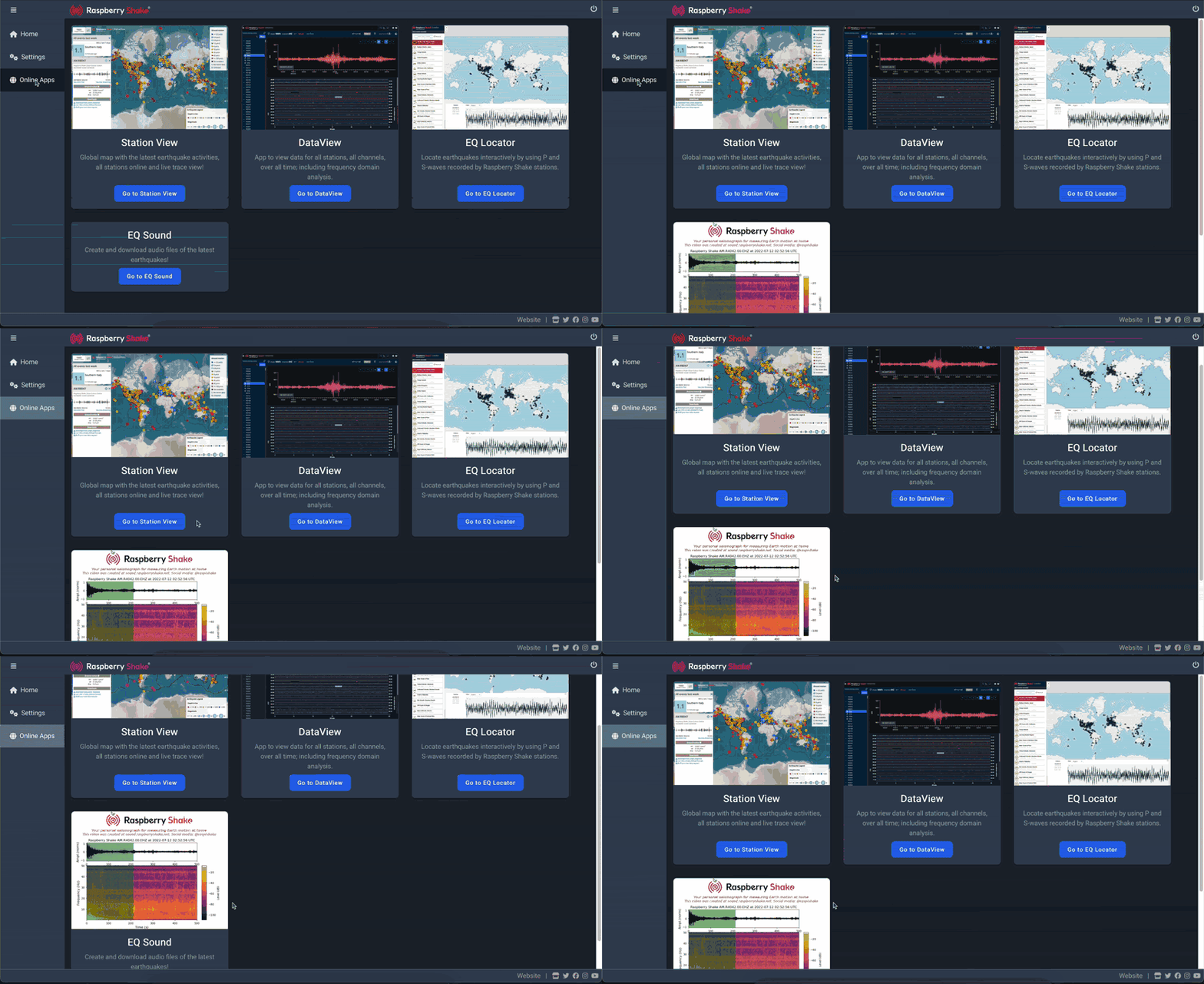
The Online Apps section previews each of Raspberry Shake’s web-based tools and provides quick links to access them. As mentioned, apps will remain disabled unless data forwarding is active. You can easily toggle this feature in Settings to unlock their full functionality.
Experience the New Control Center
With the introduction of this new dashboard, managing your Raspberry Shake(s) has never been simpler or more powerful. Whether you’re setting up a device for the first time or revisiting your Shake after a while, the new Control Center gives you complete control with just a few clicks.
Visit http://rs.local/ to explore it now, and watch the Earth move like never before.
Happy Shaking!
The Raspberry Shake Team